OBBBA Overtime Reporting: Why Employers Need Cleaner Time Data Before Payroll
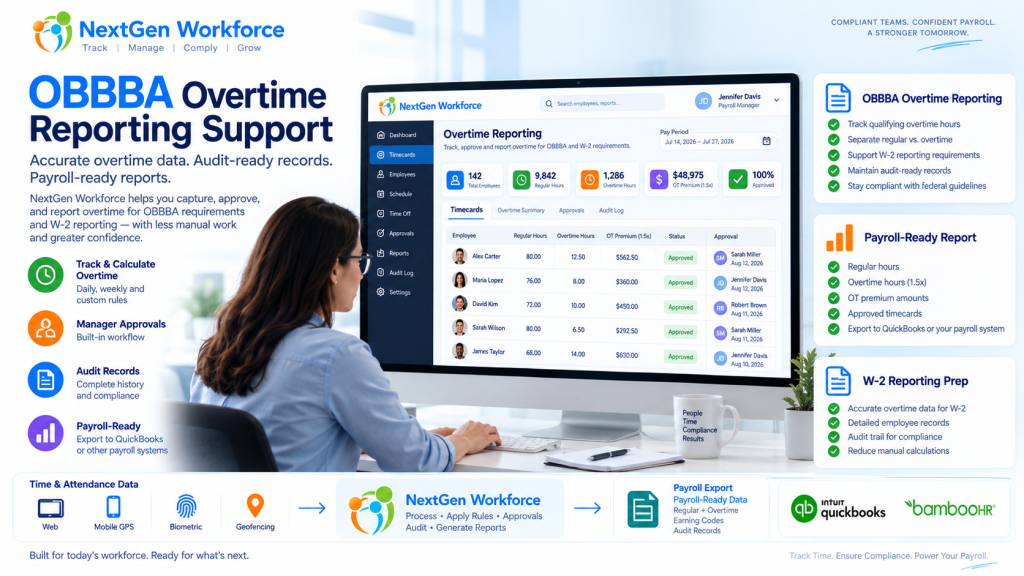
OBBBA Overtime Reporting: Why Employers Need Cleaner Time Data Before Payroll New overtime reporting rules are giving employers one more reason to clean up time data before payroll starts. The One Big Beautiful Bill Act, often shortened as OBBBA, added a new deduction for qualified overtime compensation for tax years 2025 through 2028. IRS guidance says the deduction generally applies to the overtime pay that exceeds the employee’s regular rate of pay, such as the “half” portion of time-and-a-half overtime compensation, when it meets the rules and is properly reported. Source: IRS qualified overtime compensation FAQs That sounds like a tax rule. But for employers, it quickly becomes a workforce data problem. Can your team clearly separate regular hours, overtime hours, overtime premium amounts, approvals, pay periods, employee records, and audit details before payroll reporting? If not, payroll may have to rebuild the story later. NextGen Workforce supports OBBBA-ready overtime tracking and reporting workflows to help employers review approved overtime, separate overtime premium data, maintain audit history, and prepare payroll-ready reports. We are not saying software alone makes an employer “fully compliant.” Eligibility, tax treatment, payroll reporting, and final filing decisions should be confirmed with your payroll provider, CPA, or legal advisor. But one thing is clear: if overtime is messy in the timecard, it will be messy in payroll reporting. Preparing for OBBBA “No Tax on Overtime” Reporting? NextGen Workforce helps employers track overtime, review approvals, separate overtime premium data, and generate payroll-ready overtime reports before payroll reporting. Talk To An Expert What Changed Under OBBBA? Quick answer: OBBBA created a temporary deduction for certain qualified overtime compensation for tax years 2025 through 2028. IRS guidance says employers and other payors must separately report qualified overtime compensation for 2026 and later years. Source: IRS The OBBBA “No Tax on Overtime” provision does not mean every overtime dollar is automatically tax-free. The IRS explains that the deduction applies to qualified overtime compensation. In general, this refers to the amount above the employee’s regular rate of pay that is required under section 7 of the Fair Labor Standards Act, commonly known as FLSA overtime. Source: IRS announcement For a simple time-and-a-half example, if an employee’s regular rate is $20 per hour and overtime is paid at $30 per hour, the possible qualified overtime compensation is generally the extra $10 premium portion, not the full $30 overtime rate. That distinction matters. Payroll teams may need to identify overtime hours, regular rate amounts, overtime premium amounts, and reporting details. If the source timecard data is not clean, the reporting process becomes harder. Why Employers Should Not Wait Until Year-End Quick answer: Overtime reporting starts when time is recorded, reviewed, approved, and categorized. Waiting until year-end can leave payroll teams sorting through missing punches, unclear overtime, and incomplete audit history. Year-end reporting is not where overtime data begins. It begins when the employee works extra time. Then it passes through several steps: the employee clocks in and out the system calculates regular and overtime hours the manager reviews the timecard exceptions are corrected overtime is approved or flagged payroll reviews totals reports or exports are prepared If those steps are not clean, payroll may be forced to fix the data later. That is not a good place to be when reporting rules require more detail. A relatable example: an employee works 46 hours in a week. The timecard shows the total hours, but one punch was edited, overtime approval is missing, and the employee worked across two job codes. Payroll now has to answer three questions before reporting anything: were the extra hours valid, how much was overtime premium, and which records support the calculation? That is why employers should treat OBBBA reporting as a time data readiness project, not just a tax form update. What Employers Need to Track for OBBBA-Ready Overtime Reporting Quick answer: Employers should be able to review regular hours, overtime hours, overtime premium amounts, manager approvals, pay periods, employee details, audit history, and payroll-ready report outputs. Every employer’s final reporting workflow may be different. However, the workforce data behind the process usually includes the same building blocks. Data Area Why It Matters Employee record Payroll needs the correct employee, pay period, and worker details. Clock-in and clock-out data Overtime starts with accurate time records. Regular hours Payroll needs to know the base hours before overtime is calculated. Overtime hours Overtime must be separated from regular time. Overtime premium portion The OBBBA deduction generally focuses on the premium amount above the regular rate, when it qualifies. Manager approval Approved overtime is easier to defend and process than unreviewed overtime. Edits and corrections Missing punches and changed records should have a clear audit trail. Pay code or earning code Payroll may need separate categories for regular, overtime, premium, or reportable overtime data. Payroll-ready report Payroll needs a clean output for review, export, or final reporting workflows. The main idea is simple. Do not make payroll search for overtime data across spreadsheets, emails, edits, and manager messages. Put the review process inside the workforce workflow. Regular Hours, Overtime Hours, and Overtime Premium Are Not the Same Quick answer: For OBBBA-related overtime reporting, employers may need to distinguish between total overtime pay and the overtime premium portion that exceeds the regular rate of pay. This is where many teams may get confused. Overtime reporting is not always just “show me everyone with more than 40 hours.” For example: Item Example Regular rate $20 per hour Overtime rate $30 per hour Regular portion inside overtime hour $20 Overtime premium portion $10 That $10 difference is the part employers may need to identify for qualified overtime compensation workflows, depending on the employee, pay type, FLSA rules, and final payroll reporting process. That is why time tracking and payroll data need to speak the same language. It is not enough to know that overtime happened. You need to know how it was calculated, reviewed, approved, and reported. 2025 Transition Year vs. 2026 Reporting Quick answer:
Payroll-Ready Workforce Management Software for Complex Hourly Teams
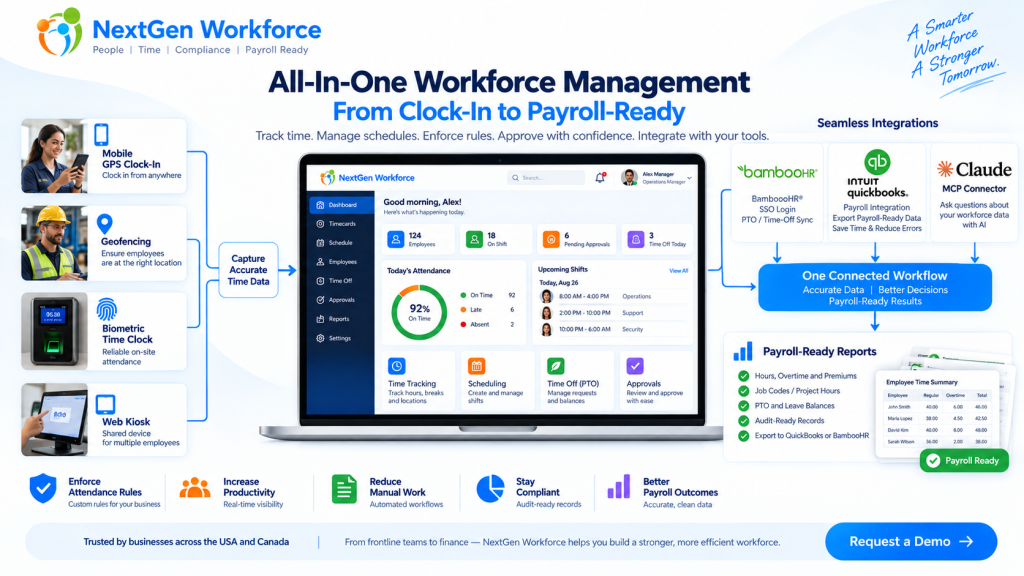
Payroll-Ready Workforce Management Software for Complex Hourly Teams You do not need another time clock. You need clean workforce data before payroll runs. That is the real problem for many growing businesses. Employees clock in. Managers adjust schedules. PTO gets approved. Overtime happens. Job codes change. Someone forgets a punch. A field employee clocks in from the wrong location. Then payroll day arrives, and the team has to clean everything manually. Sound familiar? Payroll-ready workforce management software helps businesses collect employee time, apply attendance rules, manage schedules, review exceptions, approve records, and prepare cleaner data before payroll processing. NextGen Workforce brings time tracking, attendance, scheduling, biometric clocks, mobile GPS, geofencing, PTO, approvals, custom rules, and payroll-ready reports into one connected workflow. Still Cleaning Time Data Before Every Payroll? NextGen Workforce helps your team capture accurate time, review exceptions, approve hours, and prepare payroll-ready reports before payroll runs. Talk To An Expert What Is Payroll-Ready Workforce Management? Quick answer: Payroll-ready workforce management connects the work that happens before payroll: time tracking, attendance, scheduling, PTO, overtime, approvals, job codes, and reporting. A basic time clock records hours. That is useful, but it is only the beginning. Payroll needs more than a clock-in and clock-out time. It needs clean, reviewed, categorized, and approved workforce data. That means payroll teams need to know: Did the employee work the scheduled shift? Are there missing punches? Was overtime approved? Was PTO already approved in the HR system? Did the employee work at the correct location? Which job, project, department, or client should the hours go to? Did the manager approve the timecard? Are the hours ready to send to payroll? Payroll-ready workforce management is the system that helps answer those questions before payroll day. For a business with simple office hours, this may not feel urgent. But for hourly teams, field employees, multi-location operations, manufacturing teams, hospitality groups, healthcare teams, construction crews, and businesses with custom rules, this can become a weekly problem. Why Payroll Problems Usually Start Before Payroll Quick answer: Payroll errors often start earlier in the workflow, when punches, schedules, PTO, overtime, approvals, and job data are incomplete or disconnected. Payroll software can process payroll. But it cannot magically fix messy attendance data. If an employee forgot to clock out, payroll still needs someone to fix the record. If overtime was not approved, someone has to ask the manager. If PTO is approved in one system but not visible on the timesheet, payroll has to compare records manually. Here is a simple example. A field employee visits a client site. They clock in from mobile, work for six hours, and leave. Payroll later needs to know the employee’s hours, location, client, project, order number, and approval status. If that information was not captured during the workday, someone has to reconstruct it later. That is where time gets wasted. Payroll cleanup is rarely just a payroll problem. It is usually a workforce data problem. Why Time Tracking Alone Is Not Enough Quick answer: Time tracking tells you when employees worked. Payroll-ready workforce management also tells you whether the work was scheduled, approved, categorized, compliant with company rules, and ready for payroll. A time clock answers one question: When did the employee work? A payroll-ready workforce system answers a better question: Is this record complete, correct, approved, and ready for payroll? That is a big difference. For example, a timecard may show 46 hours for the week. But before payroll processes those hours, the business may still need to review: regular hours overtime hours double-time rules where applicable holiday rules meal or break rules job codes department allocation project or client hours manager approval audit history Without that review layer, payroll teams end up doing manual checking. And manual checking does not scale well. The Core Pieces of a Payroll-Ready Workforce System Quick answer: A payroll-ready workforce system should connect time capture, scheduling, attendance rules, PTO, approvals, reporting, and payroll integrations. Each part matters on its own. But the real value comes when they work together. 1. Time Tracking Employees need a reliable way to clock in and out. NextGen Workforce supports multiple time capture workflows, including web clock, kiosk, mobile app, and biometric time clock options. This gives businesses flexibility. Office employees may use a web clock. Field employees may use mobile GPS. On-site teams may use biometric devices. Shared workstations may use kiosk workflows. 2. Attendance Management Attendance is more than recording time. Managers need visibility into late arrivals, early departures, missed punches, long shifts, exceptions, and incomplete records. NextGen Workforce helps teams review attendance issues before they become payroll problems. 3. Employee Scheduling Schedules help payroll and operations compare planned work with actual hours. When scheduling and time tracking are disconnected, managers may not notice coverage gaps, unexpected overtime, or schedule mismatches until later. NextGen Workforce connects schedules with attendance records so teams can review what was planned versus what actually happened. 4. PTO and Time-Off Visibility PTO affects payroll, scheduling, coverage, and attendance review. If PTO is approved but not visible in the timecard workflow, payroll has to check another system. NextGen Workforce supports PTO and time-off workflows, including integrations such as BambooHR time-off sync where configured. 5. Custom Attendance Rules Every business says, “Our rules are simple.” Then payroll day comes. One department has a different overtime rule. One location has holiday rules. One customer needs custom job codes. One policy requires manager approval before overtime becomes payable. Another team needs meal premium tracking or break deductions. This is where many basic time tracking tools struggle. NextGen Workforce is designed for configurable attendance rules, including overtime, breaks, rounding, holidays, premiums, exceptions, approval rules, and customer-specific workflows. 6. Approvals Payroll should not have to guess whether time is approved. A strong workflow should show whether the employee submitted the record, the manager approved it, and payroll can process it. NextGen Workforce supports manager review and approval workflows so payroll can work from clearer records. 7. Payroll-Ready Reports and Exports Payroll-ready
Overtime Request Automation: Paid Overtime or Time Off in Lieu Before Payroll
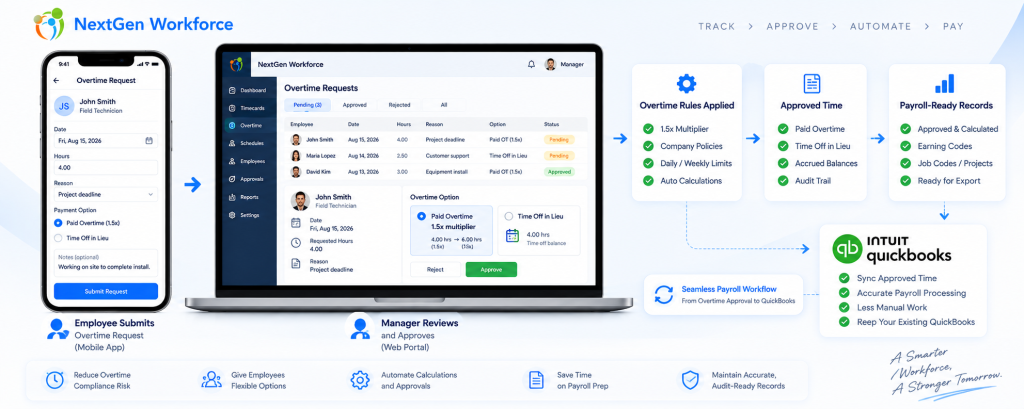
Overtime Request Automation: Paid Overtime or Time Off in Lieu Before Payroll By NextGen Workforce Editorial Team Last updated: September 2026 Overtime approval should happen before payroll, not during payroll cleanup. NextGen Workforce helps businesses manage overtime requests, approvals, paid overtime, time off in lieu, configurable multipliers, audit history, and payroll-ready records before payroll runs. For many businesses, overtime becomes a payroll problem because the approval happens too late. An employee works extra hours. A manager reviews it after the pay period. Payroll has to confirm whether the hours were approved, whether they should be paid, whether they should be converted to time off in lieu, and whether the correct earning code or balance should be updated. That creates manual cleanup. NextGen Workforce helps move this process earlier by giving employees and managers a structured overtime request workflow. Still Approving Overtime by Email or Spreadsheet? NextGen Workforce helps employees request overtime, choose paid overtime or time off in lieu, route approvals, apply configurable multipliers, and prepare payroll-ready records. Talk To An Expert Why Overtime Requests Need a Better Workflow Quick answer: An overtime request workflow helps employees submit extra hours for review, lets managers approve or reject those hours, and gives payroll clear instructions before processing paid overtime or time off in lieu. Overtime is not only a payroll calculation. It is also an approval process. Payroll teams need to know whether the extra time was authorized, why it happened, who approved it, and how it should be handled. Without a structured workflow, overtime decisions often happen through emails, messages, spreadsheets, or verbal approvals. That creates several problems: Employees work extra time without approval. Managers approve overtime too late. Payroll does not know whether overtime should be paid or banked. Time off in lieu balances are updated manually. Rejected overtime has no clear audit history. Payroll-ready reports need last-minute correction. A good overtime request workflow gives everyone the same record. The employee submits the request. The manager reviews it. Payroll receives approved and categorized data. Paid Overtime vs. Time Off in Lieu Quick answer: Paid overtime means approved extra hours are paid through payroll. Time off in lieu means approved overtime is converted into paid time off or banked time, where allowed by law and company policy. Businesses may handle approved overtime in different ways depending on country, province, state, employment agreement, employee classification, and company policy. In many Canadian employment contexts, time off in lieu or banked overtime can be allowed when specific rules are followed. For example, Canadian federal labour standards describe overtime compensation as either overtime pay or time off with pay equivalent to 1.5 hours for every overtime hour worked, subject to applicable rules. However, this is not universal everywhere. In the United States, covered nonexempt private-sector employees are generally entitled to overtime pay under the Fair Labor Standards Act. Employers should verify whether compensatory time off is allowed for their specific workforce before offering it. Option What It Means Payroll or Balance Impact Paid overtime Approved extra hours are paid at the applicable overtime rate Payroll earning code is updated Time off in lieu Approved overtime is converted into paid time off or banked time where allowed Time bank or leave balance is credited Pending approval Request is waiting for manager review Not finalized for payroll Rejected request Manager denies the overtime request Handled based on company policy and legal requirements The key is clarity. Payroll should not have to guess whether approved overtime should be paid or credited as time off in lieu. How the 1.5x Time Off in Lieu Rule Can Work Quick answer: Where time off in lieu is allowed, a company may credit overtime hours at a configured multiplier, such as 1.5x. For example, 2 approved overtime hours can become 3 hours of banked time. Some businesses allow employees to receive paid time off instead of paid overtime. This is often called: time off in lieu TOIL banked overtime compensatory time time bank Example: Approved Overtime Hours Multiplier Time Off in Lieu Credit 1 hour 1.5x 1.5 hours 2 hours 1.5x 3 hours 4 hours 1.5x 6 hours With NextGen Workforce, this can be handled as a configurable policy. For example, if an employee requests 2 hours of approved overtime as time off in lieu, the system can credit 3 hours to the employee’s time bank when the configured multiplier is 1.5x. This helps reduce manual balance updates and gives payroll a clearer audit trail. Why Retroactive Overtime Requests Matter Quick answer: Retroactive overtime requests allow employees to submit overtime after the work was performed, within a configured window such as 72 hours. This helps businesses handle emergency work without losing approval control. Not all overtime is planned in advance. Sometimes employees work extra hours because of an emergency, customer request, production issue, staffing gap, late shift coverage, or urgent project deadline. In those cases, a strict “advance approval only” process may not reflect reality. That is why many businesses need a retroactive overtime request window. For example, a company may allow employees to submit overtime requests for previous days within a configured window, such as 72 hours after the work was performed. This is not presented as a universal legal rule. It is a company policy setting. The benefit is control. Employees can explain why overtime happened. Managers can approve or reject the request. Payroll can see the approval decision before processing. The system can keep an audit record. This helps prevent overtime from becoming an unstructured payroll exception. How NextGen Workforce Automates Overtime Requests Quick answer: NextGen Workforce can automate overtime requests by allowing employees to select the date, hours, reason, and preferred handling method, then route the request to a manager for approval before payroll. A practical overtime request workflow can look like this: Employee selects the overtime date. Employee enters requested overtime hours. Employee chooses paid overtime or time off in lieu, where allowed. Employee adds a reason or note. System checks the request window, such
QuickBooks Time Alternative for Complex Attendance Rules
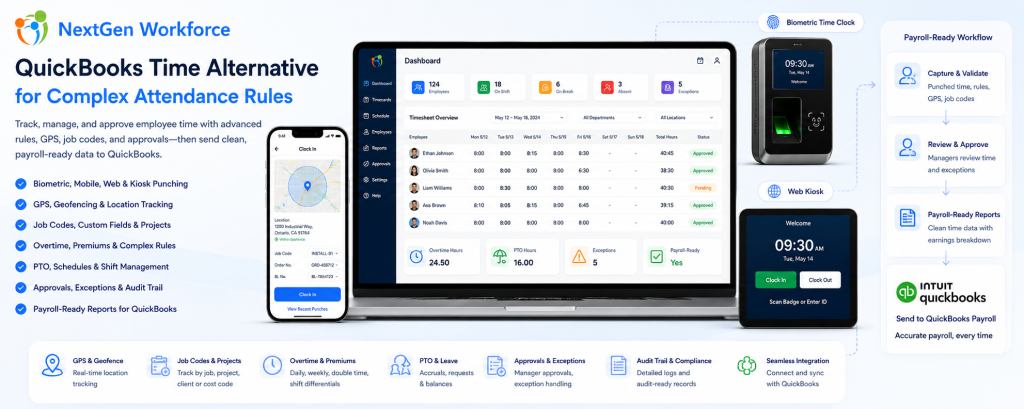
QuickBooks Time Alternative for Complex Attendance Rules By NextGen Workforce Editorial Team Last updated: August 2026 QuickBooks users do not always need another payroll tool. Many businesses need cleaner, approved, payroll-ready time data before payroll starts. If your team is still fixing missing punches, overtime, PTO, job codes, manager approvals, geofence exceptions, or custom attendance rules before processing payroll in QuickBooks, the real issue may be the time tracking workflow before payroll. QuickBooks is strong for accounting and payroll workflows. However, payroll accuracy depends on the data that reaches QuickBooks. If employee hours are incomplete, unapproved, or categorized incorrectly, payroll teams still have to clean up the records manually. That is where NextGen Workforce helps. NextGen Workforce supports businesses that use QuickBooks but need more flexible time tracking, biometric attendance, mobile GPS clock-in, geofencing, web kiosk punching, custom punch fields, complex overtime rules, PTO, approvals, audit-ready records, and payroll-ready reports. Using QuickBooks But Still Fixing Timesheets Manually? NextGen Workforce helps businesses prepare clean, reviewed, and payroll-ready time data before payroll runs. Track punches, schedules, overtime, PTO, approvals, job codes, GPS locations, geofence exceptions, and custom rules in one connected workflow. QuickBooks Time Tracking Demo Why Businesses Look for a QuickBooks Time Alternative Quick answer: Businesses often look for a QuickBooks Time alternative when their attendance rules, field tracking needs, biometric clock requirements, job codes, approvals, or payroll workflows are more complex than a basic time tracking setup. For simple teams, basic time tracking may be enough. Employees clock in, managers review hours, and payroll processes the records. However, many businesses using QuickBooks have more complex workforce requirements. They may need to track field employee locations, enforce jobsite geofences, capture custom fields, apply daily and weekly overtime, manage PTO, approve exceptions, handle shift premiums, track web kiosk punches, or support biometric devices. When those details are not handled before payroll, QuickBooks receives data that still needs work. That creates payroll cleanup. Missing punches: Payroll has to chase employees or managers. Unapproved overtime: Extra hours are discovered too late. PTO mismatches: Approved leave does not match the timesheet. Wrong earning codes: Regular, overtime, holiday, and premium hours need correction. Job code gaps: Project, department, client, or cost code details are missing. Field punch issues: Mobile employees clock in from different locations without enough visibility. Custom rule gaps: Company-specific attendance rules still need spreadsheet work. In practice, the problem is not always payroll. The problem is that time data is not payroll-ready before it reaches payroll. QuickBooks Can Process Payroll, But It Cannot Fix Messy Time Data Quick answer: QuickBooks can help process payroll, but payroll accuracy depends on complete, approved, and correctly categorized time records. NextGen Workforce helps prepare that data before payroll starts. Payroll teams need more than total hours. They need time records that are complete, approved, categorized, and ready for payroll review. Before data reaches QuickBooks, businesses often need to confirm: Did every employee clock in and out? Did managers approve the timecard? Was overtime calculated correctly? Was PTO or sick time included? Were holiday hours categorized properly? Were shift premiums or differentials applied? Were job codes, project codes, or custom fields captured? Were GPS or geofence exceptions reviewed? Were payroll earning categories mapped correctly? If these items are not reviewed before payroll, payroll teams still need manual cleanup. NextGen Workforce helps move that cleanup earlier in the workflow. Key takeaway: The goal is not just to track time. The goal is to prepare clean, approved, payroll-ready time data before QuickBooks payroll processing. How NextGen Workforce Supports QuickBooks Payroll-Ready Workflows Quick answer: NextGen Workforce helps businesses capture employee time, apply attendance rules, review exceptions, approve timecards, and prepare payroll-ready reports before data reaches QuickBooks. NextGen Workforce is built for businesses that need more than a simple clock-in screen. The workflow can support different teams, different attendance methods, and different payroll requirements. Step 1: Employees Clock In Employees can clock in using mobile, web kiosk, biometric hardware, or other supported attendance workflows. This gives businesses flexibility based on the type of workforce. Step 2: Required Details Are Captured Where needed, the system can capture GPS location, geofence status, job code, project, department, work location, Order No., BL No., task, or notes during punch workflows. This is useful for field teams, construction crews, heavy machinery companies, service teams, and project-based businesses. Step 3: Attendance Rules Are Applied NextGen Workforce can support configurable attendance rules such as overtime, double time, shift differentials, rounding, grace periods, meal rules, auto clock-out, holiday rules, and customer-specific policies. Step 4: Exceptions Are Reviewed Managers and payroll teams can review missing punches, late clock-ins, early departures, overtime warnings, geofence issues, incomplete custom fields, or timecard exceptions. Step 5: Managers Approve Timecards Approval workflows help ensure time records are reviewed before payroll starts. This reduces the need for payroll teams to chase managers at the end of the pay period. Step 6: Payroll-Ready Reports Are Prepared After review, NextGen Workforce helps prepare regular hours, overtime, double time, PTO, sick time, holiday hours, shift premiums, job codes, and other payroll-ready data. Step 7: QuickBooks Receives Cleaner Data Payroll starts with reviewed, categorized, and more reliable time records. This helps reduce spreadsheet cleanup before payroll processing. Need More Than Basic Time Tracking for QuickBooks? NextGen Workforce helps businesses manage biometric time clocks, mobile GPS clock-in, geofencing, web kiosk punching, custom punch fields, overtime rules, PTO, approvals, and payroll-ready reports. Talk To An Expert When Basic Time Tracking Is Not Enough Quick answer: Basic time tracking is often not enough when a business needs biometric verification, mobile GPS tracking, geofencing, custom punch fields, complex overtime, PTO workflows, shift premiums, or approval rules before QuickBooks payroll. Many businesses start with simple time tracking. That works until the workforce becomes more complex. Then payroll teams need more context around each punch. Business Need Why Basic Time Tracking Struggles How NextGen Workforce Helps Biometric attendance PINs or manual entry may not verify identity strongly enough Supports biometric time clock workflows Mobile field teams
California Overtime Rules: How to Prevent Payroll Errors Before They Reach QuickBooks
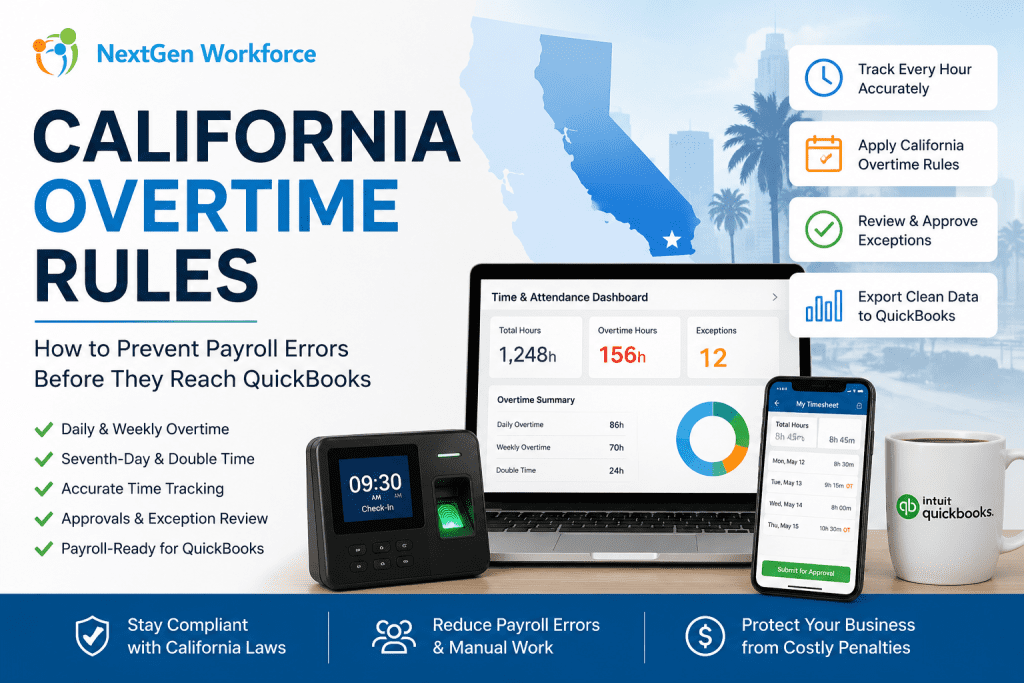
California Overtime Rules: How to Prevent Payroll Errors Before They Reach QuickBooks By NextGen Workforce Editorial Team Last updated: May 2026 California overtime rules can get expensive quickly. California overtime rules require careful review of daily hours, weekly totals, seventh-day work, employee schedules, and payroll approvals. Businesses using QuickBooks need clean, payroll-ready time data before export so overtime, double time, PTO, and attendance exceptions are handled correctly. For many California employers, payroll problems do not start inside QuickBooks. They start earlier. An employee clocks in early. A manager approves a schedule change verbally. A missed punch sits unresolved. A long shift crosses daily overtime. Then payroll arrives, and the team has to fix everything under pressure. That is the real issue. QuickBooks can process payroll, but it depends on the quality of the time data sent into it. If attendance, overtime, PTO, and approvals are not reviewed first, payroll can still become messy. Managing California Overtime Manually? NextGen Workforce helps businesses catch overtime issues before payroll runs. Track time, compare schedules, apply overtime rules, review exceptions, approve timecards, and prepare cleaner payroll-ready data for QuickBooks. See How It Works What Are California Overtime Rules? Quick answer: California overtime rules are more detailed than basic weekly overtime. Many nonexempt employees may qualify for daily overtime, weekly overtime, seventh-day overtime, and double time depending on hours worked and employee classification. Under California guidance, overtime may apply when a nonexempt employee works more than 8 hours in a workday, more than 40 hours in a workweek, or works on the seventh consecutive day in a workweek. California also recognizes double-time situations. This can apply when employees work more than 12 hours in a workday or more than 8 hours on the seventh consecutive day of work in a workweek. That means payroll teams cannot only check weekly totals. They must review daily hours, workweek totals, schedule changes, seventh-day work, and employee classifications. Exemptions and industry-specific rules may also apply, so employers should confirm details with legal counsel or official state guidance. Why California Overtime Creates Payroll Risk Quick answer: California overtime creates payroll risk because small attendance errors can affect regular time, overtime, double time, and payroll export accuracy. Missed punches, late approvals, and schedule changes can lead to incorrect pay categories if they are not reviewed before payroll. California payroll becomes risky when time data is incomplete. A missed clock-out may change daily totals. An early start may trigger overtime. A long shift may create double time. A seventh consecutive workday may need special review. These are not small details for payroll. They affect paychecks, labor cost, employee trust, and compliance exposure. They also create extra work for payroll managers who already have a deadline. California enforcement activity shows why accurate payroll records matter. In 2024, the California Labor Commissioner’s Office announced a $1.7 million wage theft settlement involving more than 550 Wingstop employees in Kern County after an investigation involving wages, overtime, and meal breaks. Manual review makes the problem harder. Payroll teams may need to check spreadsheets, manager notes, timecards, schedules, PTO requests, and QuickBooks export files. When those records do not match, the team has to investigate before payroll can move forward. Key takeaway: California overtime should be reviewed before payroll, not discovered during payroll. What Payroll Teams Should Review Before Running California Payroll Quick answer: Before running California payroll, teams should review missing punches, daily hours, weekly totals, seventh-day work, double-time triggers, PTO, holidays, schedule changes, and manager approvals. This helps reduce corrections before exporting time data to QuickBooks. A strong overtime process starts before payroll day. Payroll teams should not wait until the end of the pay period to discover exceptions. They need a workflow that identifies issues while managers still have time to review them. Missing Punches Missing punches can create incorrect daily totals. If an employee forgets to clock out, the system may not know whether overtime applies. Payroll then has to chase the employee or manager for confirmation. Daily Hours California daily overtime makes daily review important. Even when weekly hours look normal, a single long workday may still create overtime or double time. This is where basic weekly-only reviews can fail. Weekly Totals Weekly overtime still matters. Payroll teams should review total workweek hours and confirm whether overtime categories are separated correctly before export. Seventh-Day Work Seventh-day work needs special attention. If an employee works seven consecutive days in a workweek, payroll should review whether seventh-day overtime or double time applies based on the hours worked. PTO And Holidays PTO and holidays should match the timecard. If approved time off does not appear correctly, payroll teams may have to manually compare records from HR, scheduling, and attendance systems. Manager Approvals Approvals should happen before payroll. Payroll should not depend on emails, text messages, or verbal approval after the pay period closes. Manager review should be part of the timecard workflow. Free Checklist: California Overtime Payroll Audit Checklist Before sending hours to QuickBooks, use a simple checklist to review missing punches, daily overtime, weekly overtime, seventh-day work, PTO, approvals, and export readiness. Review punches: Find missing clock-ins and clock-outs. Check daily hours: Identify days over 8 and 12 hours. Check weekly totals: Review hours over 40 in the workweek. Review seventh-day work: Confirm consecutive-day rules. Confirm approvals: Make sure managers reviewed exceptions. Validate PTO: Match approved time off with timesheets. Prepare export: Confirm earning codes before QuickBooks. Contact for The California Overtime Checklist How Manual Overtime Tracking Breaks Down Quick answer: Manual overtime tracking breaks down when payroll teams rely on spreadsheets, manager memory, email approvals, and last-minute corrections. The risk grows when employees work across multiple locations, shifts, departments, or pay periods. Manual overtime review looks manageable when the team is small. Then the business grows. More employees clock in. More managers approve time. More sites open. More schedules change during the week. That is when manual tracking starts to crack. Spreadsheets drift: One edit can change payroll totals. Emails get buried: