OBBBA Overtime Reporting: Why Employers Need Cleaner Time Data Before Payroll
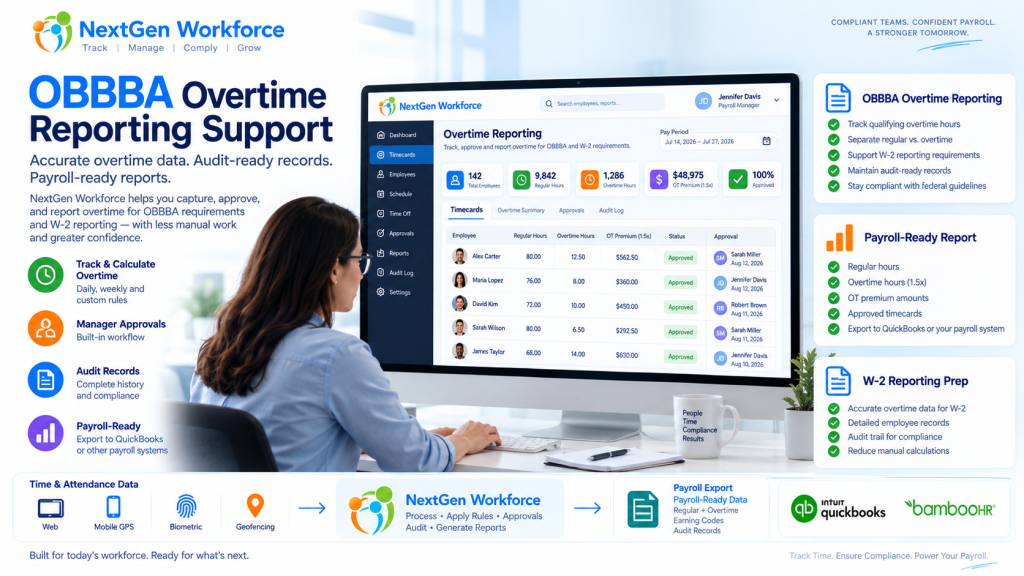
OBBBA Overtime Reporting: Why Employers Need Cleaner Time Data Before Payroll New overtime reporting rules are giving employers one more reason to clean up time data before payroll starts. The One Big Beautiful Bill Act, often shortened as OBBBA, added a new deduction for qualified overtime compensation for tax years 2025 through 2028. IRS guidance says the deduction generally applies to the overtime pay that exceeds the employee’s regular rate of pay, such as the “half” portion of time-and-a-half overtime compensation, when it meets the rules and is properly reported. Source: IRS qualified overtime compensation FAQs That sounds like a tax rule. But for employers, it quickly becomes a workforce data problem. Can your team clearly separate regular hours, overtime hours, overtime premium amounts, approvals, pay periods, employee records, and audit details before payroll reporting? If not, payroll may have to rebuild the story later. NextGen Workforce supports OBBBA-ready overtime tracking and reporting workflows to help employers review approved overtime, separate overtime premium data, maintain audit history, and prepare payroll-ready reports. We are not saying software alone makes an employer “fully compliant.” Eligibility, tax treatment, payroll reporting, and final filing decisions should be confirmed with your payroll provider, CPA, or legal advisor. But one thing is clear: if overtime is messy in the timecard, it will be messy in payroll reporting. Preparing for OBBBA “No Tax on Overtime” Reporting? NextGen Workforce helps employers track overtime, review approvals, separate overtime premium data, and generate payroll-ready overtime reports before payroll reporting. Talk To An Expert What Changed Under OBBBA? Quick answer: OBBBA created a temporary deduction for certain qualified overtime compensation for tax years 2025 through 2028. IRS guidance says employers and other payors must separately report qualified overtime compensation for 2026 and later years. Source: IRS The OBBBA “No Tax on Overtime” provision does not mean every overtime dollar is automatically tax-free. The IRS explains that the deduction applies to qualified overtime compensation. In general, this refers to the amount above the employee’s regular rate of pay that is required under section 7 of the Fair Labor Standards Act, commonly known as FLSA overtime. Source: IRS announcement For a simple time-and-a-half example, if an employee’s regular rate is $20 per hour and overtime is paid at $30 per hour, the possible qualified overtime compensation is generally the extra $10 premium portion, not the full $30 overtime rate. That distinction matters. Payroll teams may need to identify overtime hours, regular rate amounts, overtime premium amounts, and reporting details. If the source timecard data is not clean, the reporting process becomes harder. Why Employers Should Not Wait Until Year-End Quick answer: Overtime reporting starts when time is recorded, reviewed, approved, and categorized. Waiting until year-end can leave payroll teams sorting through missing punches, unclear overtime, and incomplete audit history. Year-end reporting is not where overtime data begins. It begins when the employee works extra time. Then it passes through several steps: the employee clocks in and out the system calculates regular and overtime hours the manager reviews the timecard exceptions are corrected overtime is approved or flagged payroll reviews totals reports or exports are prepared If those steps are not clean, payroll may be forced to fix the data later. That is not a good place to be when reporting rules require more detail. A relatable example: an employee works 46 hours in a week. The timecard shows the total hours, but one punch was edited, overtime approval is missing, and the employee worked across two job codes. Payroll now has to answer three questions before reporting anything: were the extra hours valid, how much was overtime premium, and which records support the calculation? That is why employers should treat OBBBA reporting as a time data readiness project, not just a tax form update. What Employers Need to Track for OBBBA-Ready Overtime Reporting Quick answer: Employers should be able to review regular hours, overtime hours, overtime premium amounts, manager approvals, pay periods, employee details, audit history, and payroll-ready report outputs. Every employer’s final reporting workflow may be different. However, the workforce data behind the process usually includes the same building blocks. Data Area Why It Matters Employee record Payroll needs the correct employee, pay period, and worker details. Clock-in and clock-out data Overtime starts with accurate time records. Regular hours Payroll needs to know the base hours before overtime is calculated. Overtime hours Overtime must be separated from regular time. Overtime premium portion The OBBBA deduction generally focuses on the premium amount above the regular rate, when it qualifies. Manager approval Approved overtime is easier to defend and process than unreviewed overtime. Edits and corrections Missing punches and changed records should have a clear audit trail. Pay code or earning code Payroll may need separate categories for regular, overtime, premium, or reportable overtime data. Payroll-ready report Payroll needs a clean output for review, export, or final reporting workflows. The main idea is simple. Do not make payroll search for overtime data across spreadsheets, emails, edits, and manager messages. Put the review process inside the workforce workflow. Regular Hours, Overtime Hours, and Overtime Premium Are Not the Same Quick answer: For OBBBA-related overtime reporting, employers may need to distinguish between total overtime pay and the overtime premium portion that exceeds the regular rate of pay. This is where many teams may get confused. Overtime reporting is not always just “show me everyone with more than 40 hours.” For example: Item Example Regular rate $20 per hour Overtime rate $30 per hour Regular portion inside overtime hour $20 Overtime premium portion $10 That $10 difference is the part employers may need to identify for qualified overtime compensation workflows, depending on the employee, pay type, FLSA rules, and final payroll reporting process. That is why time tracking and payroll data need to speak the same language. It is not enough to know that overtime happened. You need to know how it was calculated, reviewed, approved, and reported. 2025 Transition Year vs. 2026 Reporting Quick answer:
Field Time Tracking With Custom Punch Fields: Capture Order Numbers, Job Codes, and Client Data at Clock-In
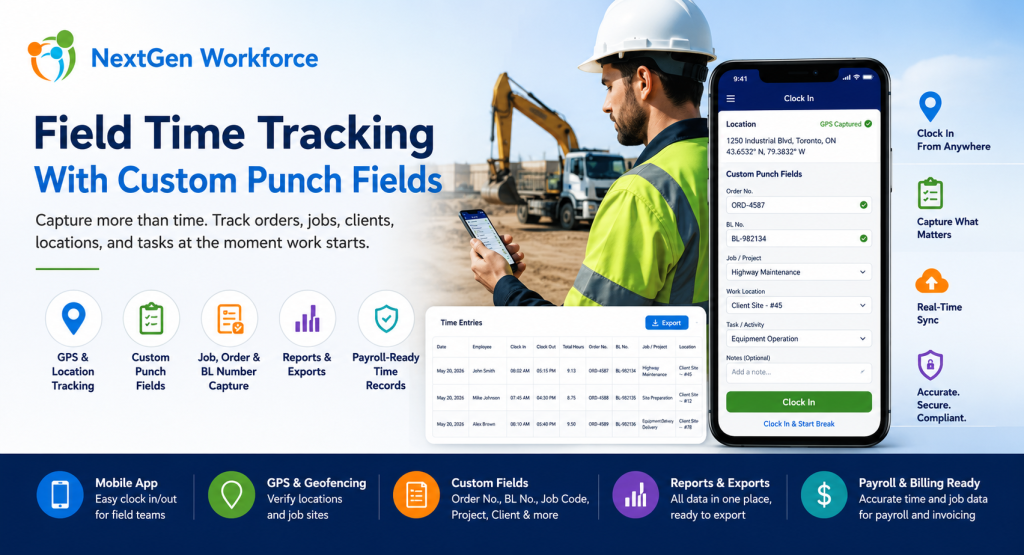
Field Time Tracking With Custom Punch Fields: Capture Order Numbers, Job Codes, and Client Data at Clock-In By NextGen Workforce Editorial Team Last updated: July 2026 Field time tracking should capture more than clock-in and clock-out time. For many field-based businesses, employees also need to capture order numbers, BL numbers, job codes, project details, customer locations, task information, and notes when they start work. If that information is not captured at the time of punch, payroll and operations teams often have to rebuild the record manually later. This is where basic time tracking software starts to fall short. A field employee may reach a customer location and receive an Order No. or BL No. before starting the job. A technician may need to select a project or task. A heavy equipment operator may need to enter a service order. A delivery team may need to capture a client reference number. A construction crew may need to clock time against a job code. Payroll needs the hours. Operations needs the job data. Management needs the report. NextGen Workforce helps businesses capture this information directly during mobile clock-in, web kiosk punch, or attendance workflows — then include it in reports and exports with the employee’s time records. Need Employees To Capture Job Data When They Clock In? NextGen Workforce helps field teams capture custom punch fields such as Order No., BL No., job code, project, client, department, work location, task, and notes during clock-in or clock-out. Track time, GPS location, custom fields, approvals, and payroll-ready records in one connected workflow. Talk To An Expert What Are Custom Punch Fields In Time Tracking? Quick answer: Custom punch fields are extra fields employees complete when they clock in, clock out, start a break, end a break, or submit time. These fields can capture business-specific details such as order numbers, BL numbers, job codes, project IDs, work locations, cost codes, task types, or notes. Most time tracking systems focus on one question: When did the employee work? For field operations, that is not enough. Businesses often need to know what the employee worked on, where the work happened, which client it belongs to, which order number applies, and how those hours should be reported or billed. Custom punch fields solve this problem by collecting operational data at the source. Instead of asking employees to write details on paper, send messages, update spreadsheets, or tell supervisors later, the required fields can be captured during the punch workflow. Examples include: Order No.: Capture the work order or service order reference. BL No.: Capture bill of lading or delivery-related reference details. Job code: Track hours against a job, project, or cost center. Client name: Identify which customer the work belongs to. Work location: Record office, branch, client site, remote site, or field location. Task type: Capture the type of work performed. Department: Assign hours to the right team or division. Notes: Let employees explain exceptions or add job details. Key takeaway: Custom punch fields turn a simple time clock into a field operations data capture tool. Why Field Teams Need More Than Basic Clock-In And Clock-Out Quick answer: Field teams need more than basic clock-in and clock-out because work often happens at customer locations, job sites, routes, branches, or remote locations. Payroll, billing, job costing, and operations may all need extra details connected to each time record. A basic clock-in record tells payroll when work started. However, it may not tell operations enough. For example, it may not show which customer the employee visited, which job number should be charged, which order number was completed, or which BL number should appear in the export. That creates manual work after the shift. Supervisors may need to call employees. Payroll may need to check messages. Operations may need to match attendance records with job records. Finance may need to connect hours to billing or job costing. As a result, the business loses time even though employees technically “clocked in.” The issue is not only attendance. The issue is missing context. NextGen Workforce helps businesses capture that context at the time of punch, when the employee is closest to the work and the information is most accurate. A Real-World Example: Field Employees Entering Order No. And BL No. Quick answer: A field employee may receive an Order No. or BL No. only after reaching the client location. With NextGen Workforce, the employee can enter those details during mobile clock-in so the information stays connected to the time record. Here is a common field workforce scenario. An employee travels to a client location. After reaching the site, they receive the Order No. and BL No. from the customer or site contact. Before starting work, they need to record those values. In a manual process, this usually means the employee writes the details down, sends a message, updates a sheet, or tells a supervisor later. That creates risk. The number may be entered incorrectly. The information may arrive late. Payroll may not see it. Operations may not be able to match hours with the correct order. Reports may need manual cleanup. With NextGen Workforce, the workflow can be cleaner: The employee reaches the client location. The employee opens the NextGen Workforce mobile app. The app can capture GPS location if enabled. The employee enters or selects the required Order No. and BL No. The employee clocks in. The time record stores the punch time, employee, location, and custom field values. Managers and admins can review the record. Reports and exports can include the custom fields with the attendance data. This is where NextGen Workforce becomes especially useful. It helps field teams capture real operational data at the moment work begins. How NextGen Workforce Mobile App Helps Field Employees Quick answer: The NextGen Workforce mobile app helps field employees clock in from client locations, capture GPS details where enabled, complete custom punch fields, submit job-related information, and create cleaner time records for payroll and operations. Mobile time tracking should be simple for employees