Field Time Tracking With Custom Punch Fields: Capture Order Numbers, Job Codes, and Client Data at Clock-In
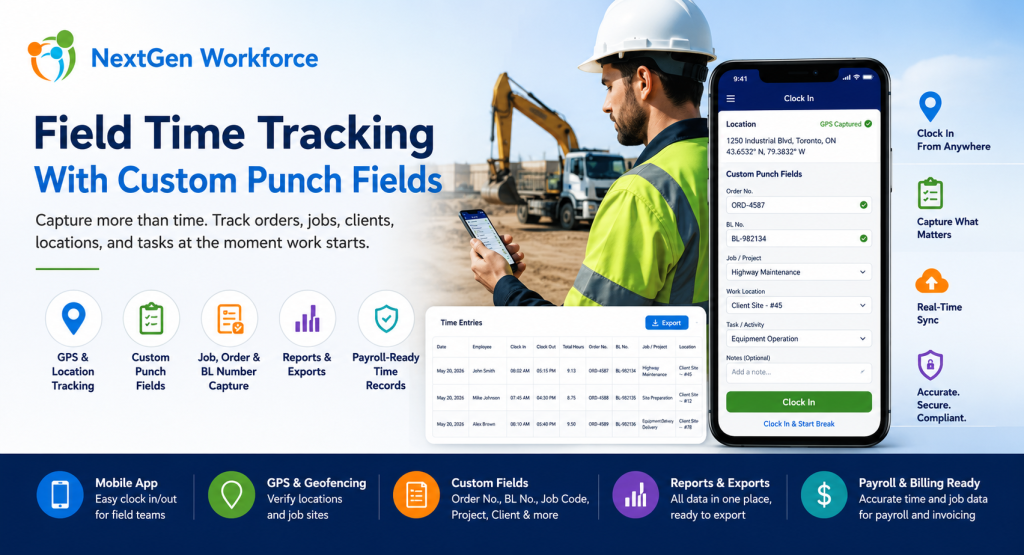
Field Time Tracking With Custom Punch Fields: Capture Order Numbers, Job Codes, and Client Data at Clock-In By NextGen Workforce Editorial Team Last updated: July 2026 Field time tracking should capture more than clock-in and clock-out time. For many field-based businesses, employees also need to capture order numbers, BL numbers, job codes, project details, customer locations, task information, and notes when they start work. If that information is not captured at the time of punch, payroll and operations teams often have to rebuild the record manually later. This is where basic time tracking software starts to fall short. A field employee may reach a customer location and receive an Order No. or BL No. before starting the job. A technician may need to select a project or task. A heavy equipment operator may need to enter a service order. A delivery team may need to capture a client reference number. A construction crew may need to clock time against a job code. Payroll needs the hours. Operations needs the job data. Management needs the report. NextGen Workforce helps businesses capture this information directly during mobile clock-in, web kiosk punch, or attendance workflows — then include it in reports and exports with the employee’s time records. Need Employees To Capture Job Data When They Clock In? NextGen Workforce helps field teams capture custom punch fields such as Order No., BL No., job code, project, client, department, work location, task, and notes during clock-in or clock-out. Track time, GPS location, custom fields, approvals, and payroll-ready records in one connected workflow. Talk To An Expert What Are Custom Punch Fields In Time Tracking? Quick answer: Custom punch fields are extra fields employees complete when they clock in, clock out, start a break, end a break, or submit time. These fields can capture business-specific details such as order numbers, BL numbers, job codes, project IDs, work locations, cost codes, task types, or notes. Most time tracking systems focus on one question: When did the employee work? For field operations, that is not enough. Businesses often need to know what the employee worked on, where the work happened, which client it belongs to, which order number applies, and how those hours should be reported or billed. Custom punch fields solve this problem by collecting operational data at the source. Instead of asking employees to write details on paper, send messages, update spreadsheets, or tell supervisors later, the required fields can be captured during the punch workflow. Examples include: Order No.: Capture the work order or service order reference. BL No.: Capture bill of lading or delivery-related reference details. Job code: Track hours against a job, project, or cost center. Client name: Identify which customer the work belongs to. Work location: Record office, branch, client site, remote site, or field location. Task type: Capture the type of work performed. Department: Assign hours to the right team or division. Notes: Let employees explain exceptions or add job details. Key takeaway: Custom punch fields turn a simple time clock into a field operations data capture tool. Why Field Teams Need More Than Basic Clock-In And Clock-Out Quick answer: Field teams need more than basic clock-in and clock-out because work often happens at customer locations, job sites, routes, branches, or remote locations. Payroll, billing, job costing, and operations may all need extra details connected to each time record. A basic clock-in record tells payroll when work started. However, it may not tell operations enough. For example, it may not show which customer the employee visited, which job number should be charged, which order number was completed, or which BL number should appear in the export. That creates manual work after the shift. Supervisors may need to call employees. Payroll may need to check messages. Operations may need to match attendance records with job records. Finance may need to connect hours to billing or job costing. As a result, the business loses time even though employees technically “clocked in.” The issue is not only attendance. The issue is missing context. NextGen Workforce helps businesses capture that context at the time of punch, when the employee is closest to the work and the information is most accurate. A Real-World Example: Field Employees Entering Order No. And BL No. Quick answer: A field employee may receive an Order No. or BL No. only after reaching the client location. With NextGen Workforce, the employee can enter those details during mobile clock-in so the information stays connected to the time record. Here is a common field workforce scenario. An employee travels to a client location. After reaching the site, they receive the Order No. and BL No. from the customer or site contact. Before starting work, they need to record those values. In a manual process, this usually means the employee writes the details down, sends a message, updates a sheet, or tells a supervisor later. That creates risk. The number may be entered incorrectly. The information may arrive late. Payroll may not see it. Operations may not be able to match hours with the correct order. Reports may need manual cleanup. With NextGen Workforce, the workflow can be cleaner: The employee reaches the client location. The employee opens the NextGen Workforce mobile app. The app can capture GPS location if enabled. The employee enters or selects the required Order No. and BL No. The employee clocks in. The time record stores the punch time, employee, location, and custom field values. Managers and admins can review the record. Reports and exports can include the custom fields with the attendance data. This is where NextGen Workforce becomes especially useful. It helps field teams capture real operational data at the moment work begins. How NextGen Workforce Mobile App Helps Field Employees Quick answer: The NextGen Workforce mobile app helps field employees clock in from client locations, capture GPS details where enabled, complete custom punch fields, submit job-related information, and create cleaner time records for payroll and operations. Mobile time tracking should be simple for employees
Web Kiosk Time Clock: Flexible Attendance Tracking Without Extra Hardware
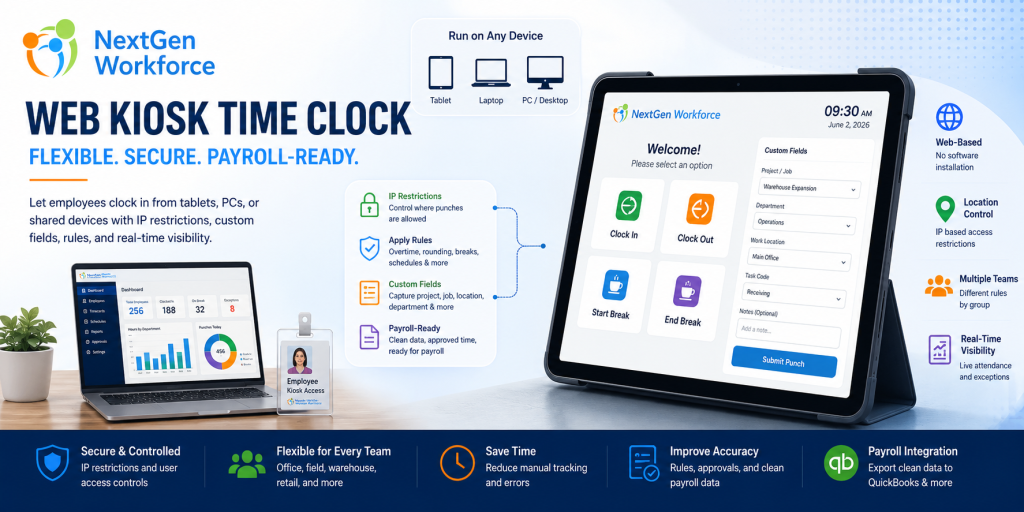
Web Kiosk Time Clock: Flexible Attendance Tracking Without Extra Hardware By NextGen Workforce Editorial Team Last updated: July 2026 Not every business needs a fingerprint device or mobile GPS clock-in for every employee. A web kiosk time clock gives businesses a flexible way to let employees clock in from a shared tablet, office PC, front desk system, warehouse station, or approved device. With the right controls, it can support IP restrictions, attendance rules, custom punch fields, approvals, and payroll-ready reporting. This matters because workforce tracking is not one-size-fits-all. Some teams need mobile GPS clock-in. Some need geofencing. Some need hardware biometric clocks with fingerprint or face reader options. Others simply need a controlled web kiosk that employees can use from a shared location. NextGen Workforce supports all of these options. The goal is simple: give businesses the right attendance method for each workforce group while keeping payroll data clean, reviewed, and ready before payroll runs. Need A Time Clock Setup That Fits Your Workforce? NextGen Workforce supports web kiosk, mobile GPS clock-in, geofencing, biometric hardware clocks, scheduling, attendance rules, custom fields, approvals, and payroll-ready reporting. If your current system cannot support different attendance methods for different teams, our team can review your workflow. Talk To An Expert What Is A Web Kiosk Time Clock? Quick answer: A web kiosk time clock lets employees clock in and out through a browser on a shared tablet, computer, laptop, or approved device. It is useful for workplaces that want controlled attendance tracking without installing dedicated hardware for every location. A web kiosk is simple in concept. The employer opens the kiosk time clock on an approved device. Employees use that shared device to clock in, clock out, start breaks, end breaks, or submit punch information. That device could be: a tablet at the front desk a PC in the office a laptop at a job site trailer a shared warehouse workstation a system used by supervisors a personal device if the employer allows it For many businesses, this is easier than buying and installing hardware at every location. However, a kiosk should not be just a basic clock-in screen. It should still support attendance rules, punch controls, custom fields, approvals, and payroll-ready reporting. Key takeaway: A web kiosk works best when it is connected to the full attendance-to-payroll workflow, not used as a standalone punch screen. Why Businesses Need More Than One Time Clock Option Quick answer: Businesses often need multiple time clock options because employees work in different environments. Office employees may use a web kiosk, field teams may use mobile GPS, and on-site teams may use biometric hardware clocks. A single time clock method rarely works for every workforce group. For example, office employees may not need GPS tracking. Field employees may not have access to a shared kiosk. Warehouse teams may need a biometric device. Remote workers may need mobile clock-in with location visibility. That is why NextGen Workforce supports multiple attendance methods. Instead of forcing every employee into one model, businesses can choose the best method by team, location, role, or policy. Attendance Method Best For Main Benefit Web kiosk Shared offices, warehouses, clinics, retail stores, job site trailers Flexible browser-based clock-in without extra hardware Mobile GPS clock-in Field teams, remote workers, mobile employees Location visibility when employees clock in Geofencing Job sites, branches, customer locations Controls or validates clock-ins by approved location Fingerprint device On-site hourly teams Stronger employee identity verification Face reader hardware Hands-free or faster on-site clock-in environments Convenient biometric attendance option This flexibility matters for payroll. When the time capture method fits the workforce, attendance records are easier to trust and easier to approve before payroll. How A Web Kiosk Helps Reduce Manual Attendance Work Quick answer: A web kiosk helps reduce manual attendance work by giving employees a controlled clock-in point while allowing managers to apply rules, capture required punch details, review exceptions, and prepare payroll-ready records. Manual attendance tracking creates problems quickly. Employees forget to write down time. Supervisors collect paper notes. Payroll enters hours manually. Managers approve late. Project or department details go missing. A web kiosk helps create a cleaner process. Employees use the kiosk to clock in and out. The system records time, employee identity, punch type, and any required fields. Managers can then review exceptions before payroll. For businesses that do not want hardware at every location, this can be a practical option. It gives employees a simple way to punch while still keeping the data inside the attendance system. IP Restrictions For Controlled Web Kiosk Attendance Quick answer: IP restrictions help employers control where web kiosk punches can happen. Businesses can allow clock-ins only from approved office, branch, warehouse, or job site network locations. A web kiosk should be flexible, but it also needs controls. One important control is IP restriction. With IP restriction enabled, a business can limit web kiosk punching to approved network locations. For example, employees may only be allowed to clock in from the office internet connection, warehouse network, branch location, or another approved IP address. This helps reduce unauthorized off-site punching when the kiosk should only be used at a specific location. For some companies, IP restriction is the right balance. They may not need GPS for every employee, but they still want to know that web kiosk punches are happening from an approved workplace network. Custom Fields At Punch: Capture More Than Time Quick answer: Custom fields allow employers to capture extra information when employees punch, such as project, job, department, work location, meal confirmation, safety response, task, or cost code. Clock-in time alone is often not enough. Many businesses need more context. For example, an employee may need to select a project, job code, department, work location, shift type, cost center, or reason code when clocking in or out. NextGen Workforce can support custom punch fields so businesses capture required information at the time of the punch. This can help with: Project tracking: Capture which project or job the employee