Custom Time Tracking Software for Complex Workforce Rules
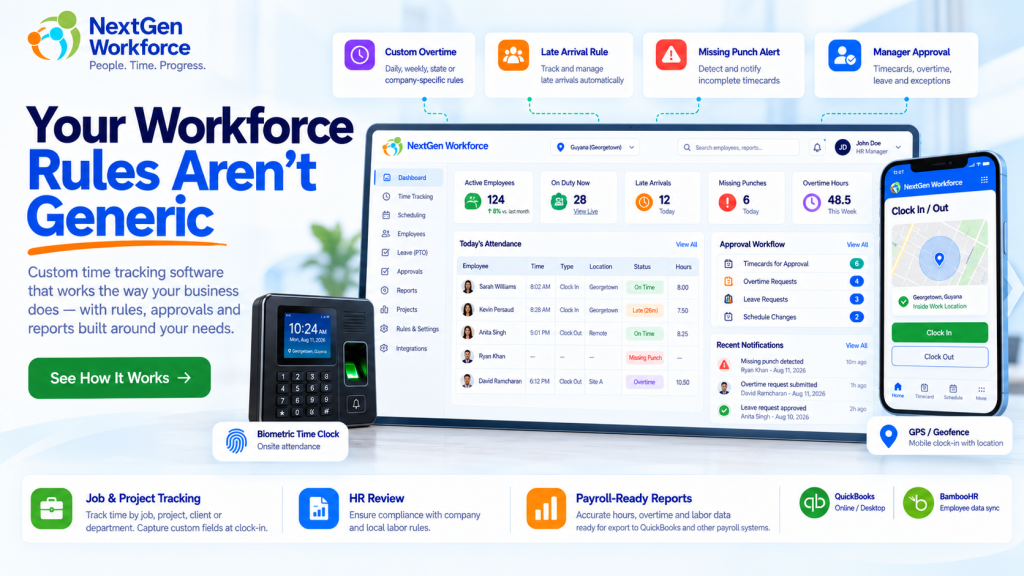
Custom Time Tracking Software for Complex Workforce Rules Most businesses do not struggle because employees cannot clock in. They struggle because the rules around that clock-in are more complicated than the software expects. An employee works overtime after a specific daily threshold. Another department follows a different schedule. A manager approves overtime, but HR must review it before payroll. Field employees need GPS and job information at clock-in. One customer needs travel time. Another needs Saturday, Sunday, or holiday premiums. That is where basic time tracking starts to break down. NextGen Workforce is built for businesses that need more than a standard clock-in and clock-out workflow. It helps companies manage time tracking, attendance, overtime, scheduling, approvals, location rules, custom punch information, and payroll-ready reporting around the way the business actually operates. Your Workforce Rules Aren’t Generic If your team is still adjusting timesheets manually because your software cannot handle the way your business works, let’s review the workflow. Talk To An Expert Image Placeholder: Custom Workforce Rules Hero What Is Custom Time Tracking Software? Custom time tracking software allows a business to define how employee time should be captured, validated, approved, categorized, and reported instead of forcing every employee into one fixed workflow. Basic systems usually answer a simple question: When did the employee start and stop working? Businesses with more complex operations need the system to answer much more: Was the employee scheduled to work? Did they arrive late? Did overtime start after the correct threshold? Does the day qualify for a premium rate? Was the employee at the correct location? Which client, project, job, or order did they work on? Did a manager approve the extra hours? Does HR need to review the approval? Is a punch missing? Is the record ready for payroll? The punch itself is only the starting point. The time clock records what happened. The workforce rules determine what it means. Why Standard Time Tracking Often Stops Being Enough A small business may start with one simple rule: Clock in. Clock out. Calculate the hours. Then the business grows. It adds departments. Different shifts. Field employees. Client sites. Overtime rules. Approval levels. Paid and unpaid leave. Holidays. Mobile workers. Payroll integrations. Before long, payroll is fixing exceptions every pay period. The system may still be collecting punches correctly, but the people around it are doing the real work manually. That usually shows up in spreadsheets, emails, supervisor notes, payroll adjustments, or repeated questions from HR. If the same corrections happen every payroll cycle, the problem may not be employee behavior. The workflow may simply be too rigid. 1. Custom Overtime Thresholds Not every company calculates overtime using the same rule. Some businesses may apply overtime after a daily threshold. Others may use a weekly threshold. Some may need both. Another company may have a customer-specific rule based on the employee group, workday, or agreement. For example: Worked Hours Configured Rule Result 8.00 OT after 8.5 hours 8.00 Regular 8.50 OT after 8.5 hours 8.50 Regular 9.25 OT after 8.5 hours 8.50 Regular + 0.75 OT Another employer may require daily overtime after eight hours and double time after twelve. The important point is that the software should apply the configured rule consistently and keep the calculation reviewable. NextGen Workforce supports configurable overtime logic for businesses that need more than one generic overtime setting. 2. Saturday, Sunday, and Holiday Rules Weekend and holiday hours can create another layer of complexity. A company may need rules such as: Saturday hours at a premium rate Sunday hours at double time Public holiday hours at a separate rate Holiday rules that override normal daily overtime Different weekend treatment by employee or location These are exactly the kinds of rules that become difficult when payroll has to identify and recalculate them manually. A configurable system can classify the hours automatically before they reach payroll. 3. More Than One Approval Level In some organizations, manager approval is enough. In others, it is only the first step. A business may require: Employee Works Extra Hours ↓ Manager Reviews ↓ Manager Approves ↓ HR Reviews ↓ Payroll Ready This matters because operational approval and payroll approval are not always the same thing. A supervisor may confirm that an employee worked the hours. HR may still need to check policy, overtime eligibility, documentation, or pay treatment before payroll receives the record. NextGen Workforce can support multi-step approval workflows where customers need more control over that process. 4. Late Rules With Configurable Grace Periods “Late” sounds simple until you ask what late actually means. One company may flag an employee one minute after the scheduled start. Another may allow five minutes. Another may want the late minutes reported but not treated as an exception until a separate threshold is reached. For example: Shift Start Clock-In Configured Grace Result 8:00 AM 8:03 AM 5 minutes Within tolerance 8:00 AM 8:05 AM 5 minutes Within tolerance 8:00 AM 8:09 AM 5 minutes Late The system can then track: Late occurrences Late minutes by day Total late minutes by employee Department late totals Attendance trends That gives HR something more useful than a simple red icon next to a punch. 5. Missing Punch Alerts Before Payroll Missing punches are one of the simplest problems in attendance management, but they still create a surprising amount of payroll cleanup. An employee clocks in but forgets to clock out. Another employee is scheduled but never records a clock-in. If those exceptions are discovered at the end of the pay period, payroll has to chase people for answers. A better workflow surfaces the problem earlier. For example: Scheduled Shift Starts ↓ No Clock-In Detected ↓ Configured Tolerance Expires ↓ Attendance Exception Created ↓ Manager / Supervisor Alerted NextGen Workforce can support alerts and exception workflows so managers can act before payroll day. 6. Different Rules for Different Employees or Departments One of the biggest limitations of rigid attendance systems is assuming every employee follows the same rule. That is often
Time and Attendance Software for Guyana Businesses
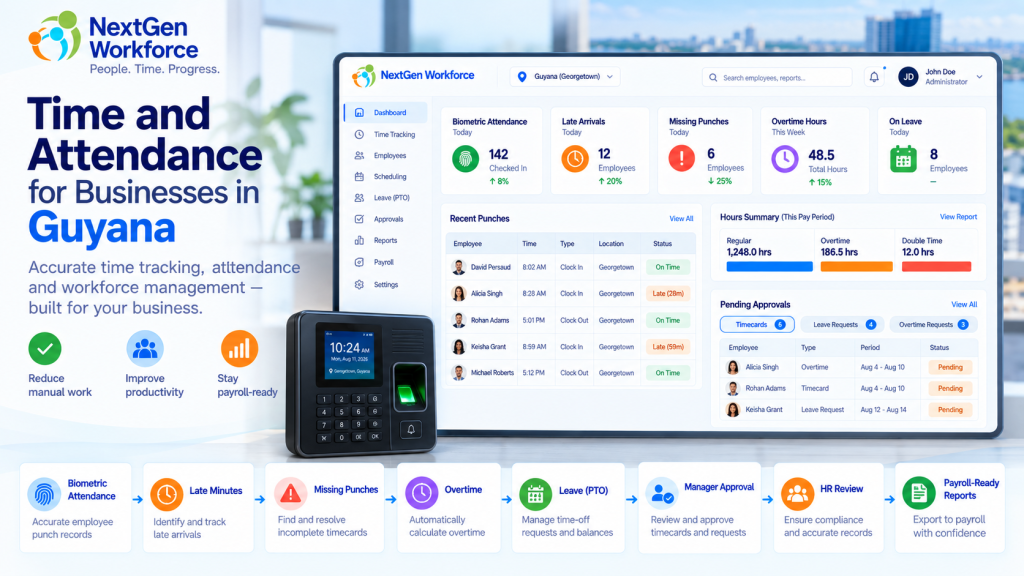
Time and Attendance Software for Guyana Businesses Employee attendance gets complicated quickly when overtime, late arrivals, missed punches, leave, approvals, and payroll all depend on the same time data. A biometric clock may record when someone arrives and leaves. But HR still needs to know whether the employee was late, whether overtime applies, whether a punch is missing, which leave category applies, and whether the record is ready for payroll. That is the gap NextGen Workforce is designed to handle. NextGen Workforce helps businesses in Guyana manage biometric time capture, attendance rules, overtime, late arrivals, leave categories, manager alerts, approvals, and payroll-ready reporting in one connected workflow. For companies with hourly employees, shift workers, multiple departments, or more complex attendance policies, that can remove a lot of manual checking before payroll. Still Checking Attendance Manually Before Payroll? NextGen Workforce helps Guyana businesses move from employee punches to reviewed, approved, payroll-ready attendance data. Talk To An Expert What Does Time and Attendance Software Need to Do for a Guyana Business? Quick answer: A useful attendance system should do more than collect clock-in and clock-out times. It should help HR and payroll review overtime, late arrivals, missed punches, leave, approvals, departments, and payroll-ready totals. Think about a normal payroll week. One employee clocks in late. Another forgets to clock out. A third works overtime. Someone else is on certified sick leave. A manager approves extra hours, but HR still wants a final review before those hours reach payroll. A simple time clock can record some of this. But someone still has to connect the pieces. NextGen Workforce helps bring those pieces into one workflow: Biometric time clock punches Web and mobile clock-in options Employee schedules Late-arrival rules Missing punch alerts Overtime calculation Manager and HR approvals Leave and attendance categories Employee and department summaries Payroll-ready reports Guyana Overtime Rules: What Employers Need to Track Quick answer: Guyana’s Ministry of Labour states that the normal work week is 40 hours over no more than five days, with normal daily working hours of eight hours. Work beyond eight hours in a day generally attracts overtime at one-and-a-half times the normal rate. Source: Guyana Ministry of Labour The same Ministry guidance says workers are generally entitled to at least 1.5× their normal rate for hours worked on Sundays and public holidays. It also sets out special rules for factory workers, including 2× pay on Sundays and certain named public holidays. Source: Guyana Ministry of Labour For factory workers, the Ministry separately notes that Sundays and certain public holidays can attract double time, while other public holidays may attract 1.5×. Source: Guyana Ministry of Labour factory overtime guidance That means employers should not treat every overtime situation as one simple rule. Industry, employee category, company policy, and applicable legislation all matter. NextGen Workforce can be configured around the overtime rules that apply to the business. For example, one employer may configure: Daily overtime after a defined threshold Saturday overtime rules Sunday premium rates Public holiday premium rates Manager approval before overtime is accepted HR review before approved overtime reaches payroll Important: Company-configured attendance rules should always be reviewed against the employer’s applicable Guyana labour requirements. The software can apply the configured rule, but the employer remains responsible for confirming which legal rule applies. Why a Biometric Time Clock Is Only the First Step Quick answer: A biometric time clock gives you reliable punch data. The attendance system still needs to interpret that data for schedules, lateness, overtime, leave, exceptions, and payroll. Biometric devices are useful because they help confirm that the right employee is making the punch. That matters in environments where employees work on-site and businesses want tighter control over attendance records. But the clock itself does not answer questions such as: Was the employee late? How many minutes late? Did overtime apply? Was the overtime approved? Is a punch missing? Was the employee on vacation or sick leave? How many hours did the department work? Is the timecard ready for payroll? NextGen Workforce connects the biometric punch to the attendance workflow. That is where the value becomes much bigger than simply replacing a paper timesheet. Track Late Employees Automatically Quick answer: NextGen Workforce can compare an employee’s actual clock-in time with the scheduled shift start and flag late arrivals based on the company’s configured tolerance. For example, a company may decide that an employee is considered late when they clock in more than five minutes after the scheduled start time. Shift Start Clock-In Attendance Result 8:00 AM 8:03 AM Within configured tolerance 8:00 AM 8:05 AM Within configured tolerance 8:00 AM 8:07 AM Late — 7 minutes 8:00 AM 8:18 AM Late — 18 minutes The system can then report: Late status Late minutes for the day Total late minutes for the month Late occurrences by employee Total late minutes by department This gives HR something more useful than a simple “late” flag. They can see the pattern. Alert Managers When an Employee Is Late or Misses a Punch Quick answer: Attendance alerts can notify managers or supervisors when an employee has not clocked in after the allowed tolerance or when an expected punch is missing. That is much more useful than discovering the problem at the end of the pay period. A typical late-arrival workflow might look like this: The employee is scheduled for 8:00 AM. The company allows a five-minute tolerance. No clock-in exists after the configured threshold. The system flags the attendance exception. The manager or supervisor receives an alert. A missing punch can work in a similar way. For example, an employee may clock in correctly but forget to clock out. Instead of payroll discovering the problem days later, the exception can be surfaced earlier for review. Manager Approval Is Not Always the Final Payroll Approval Quick answer: Some businesses need more than one approval level. A manager may approve overtime first, while HR performs a final review before overtime becomes payroll-ready. This is a common example of why
Web Kiosk Time Clock: Flexible Attendance Tracking Without Extra Hardware
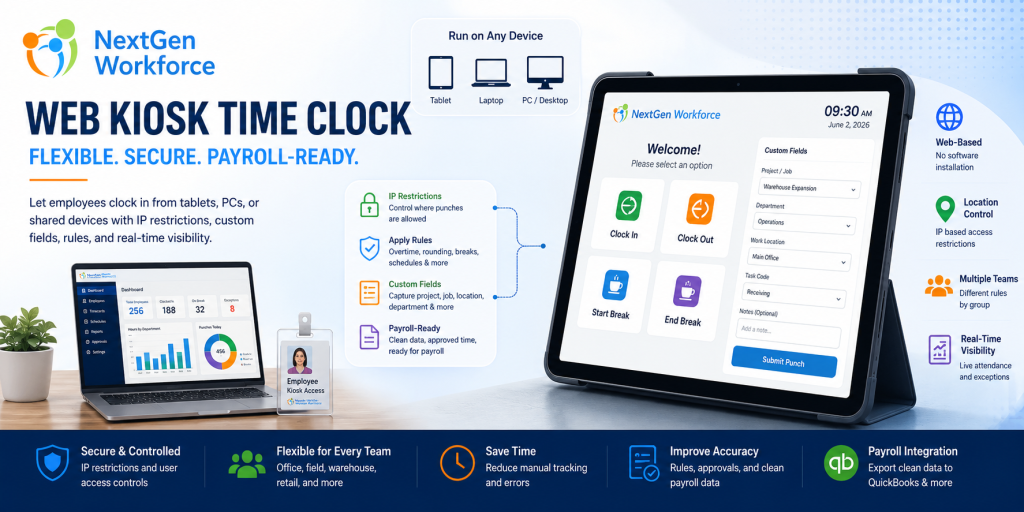
Web Kiosk Time Clock: Flexible Attendance Tracking Without Extra Hardware By NextGen Workforce Editorial Team Last updated: July 2026 Not every business needs a fingerprint device or mobile GPS clock-in for every employee. A web kiosk time clock gives businesses a flexible way to let employees clock in from a shared tablet, office PC, front desk system, warehouse station, or approved device. With the right controls, it can support IP restrictions, attendance rules, custom punch fields, approvals, and payroll-ready reporting. This matters because workforce tracking is not one-size-fits-all. Some teams need mobile GPS clock-in. Some need geofencing. Some need hardware biometric clocks with fingerprint or face reader options. Others simply need a controlled web kiosk that employees can use from a shared location. NextGen Workforce supports all of these options. The goal is simple: give businesses the right attendance method for each workforce group while keeping payroll data clean, reviewed, and ready before payroll runs. Need A Time Clock Setup That Fits Your Workforce? NextGen Workforce supports web kiosk, mobile GPS clock-in, geofencing, biometric hardware clocks, scheduling, attendance rules, custom fields, approvals, and payroll-ready reporting. If your current system cannot support different attendance methods for different teams, our team can review your workflow. Talk To An Expert What Is A Web Kiosk Time Clock? Quick answer: A web kiosk time clock lets employees clock in and out through a browser on a shared tablet, computer, laptop, or approved device. It is useful for workplaces that want controlled attendance tracking without installing dedicated hardware for every location. A web kiosk is simple in concept. The employer opens the kiosk time clock on an approved device. Employees use that shared device to clock in, clock out, start breaks, end breaks, or submit punch information. That device could be: a tablet at the front desk a PC in the office a laptop at a job site trailer a shared warehouse workstation a system used by supervisors a personal device if the employer allows it For many businesses, this is easier than buying and installing hardware at every location. However, a kiosk should not be just a basic clock-in screen. It should still support attendance rules, punch controls, custom fields, approvals, and payroll-ready reporting. Key takeaway: A web kiosk works best when it is connected to the full attendance-to-payroll workflow, not used as a standalone punch screen. Why Businesses Need More Than One Time Clock Option Quick answer: Businesses often need multiple time clock options because employees work in different environments. Office employees may use a web kiosk, field teams may use mobile GPS, and on-site teams may use biometric hardware clocks. A single time clock method rarely works for every workforce group. For example, office employees may not need GPS tracking. Field employees may not have access to a shared kiosk. Warehouse teams may need a biometric device. Remote workers may need mobile clock-in with location visibility. That is why NextGen Workforce supports multiple attendance methods. Instead of forcing every employee into one model, businesses can choose the best method by team, location, role, or policy. Attendance Method Best For Main Benefit Web kiosk Shared offices, warehouses, clinics, retail stores, job site trailers Flexible browser-based clock-in without extra hardware Mobile GPS clock-in Field teams, remote workers, mobile employees Location visibility when employees clock in Geofencing Job sites, branches, customer locations Controls or validates clock-ins by approved location Fingerprint device On-site hourly teams Stronger employee identity verification Face reader hardware Hands-free or faster on-site clock-in environments Convenient biometric attendance option This flexibility matters for payroll. When the time capture method fits the workforce, attendance records are easier to trust and easier to approve before payroll. How A Web Kiosk Helps Reduce Manual Attendance Work Quick answer: A web kiosk helps reduce manual attendance work by giving employees a controlled clock-in point while allowing managers to apply rules, capture required punch details, review exceptions, and prepare payroll-ready records. Manual attendance tracking creates problems quickly. Employees forget to write down time. Supervisors collect paper notes. Payroll enters hours manually. Managers approve late. Project or department details go missing. A web kiosk helps create a cleaner process. Employees use the kiosk to clock in and out. The system records time, employee identity, punch type, and any required fields. Managers can then review exceptions before payroll. For businesses that do not want hardware at every location, this can be a practical option. It gives employees a simple way to punch while still keeping the data inside the attendance system. IP Restrictions For Controlled Web Kiosk Attendance Quick answer: IP restrictions help employers control where web kiosk punches can happen. Businesses can allow clock-ins only from approved office, branch, warehouse, or job site network locations. A web kiosk should be flexible, but it also needs controls. One important control is IP restriction. With IP restriction enabled, a business can limit web kiosk punching to approved network locations. For example, employees may only be allowed to clock in from the office internet connection, warehouse network, branch location, or another approved IP address. This helps reduce unauthorized off-site punching when the kiosk should only be used at a specific location. For some companies, IP restriction is the right balance. They may not need GPS for every employee, but they still want to know that web kiosk punches are happening from an approved workplace network. Custom Fields At Punch: Capture More Than Time Quick answer: Custom fields allow employers to capture extra information when employees punch, such as project, job, department, work location, meal confirmation, safety response, task, or cost code. Clock-in time alone is often not enough. Many businesses need more context. For example, an employee may need to select a project, job code, department, work location, shift type, cost center, or reason code when clocking in or out. NextGen Workforce can support custom punch fields so businesses capture required information at the time of the punch. This can help with: Project tracking: Capture which project or job the employee