
A Complete Guide to Geofencing in NextGen Workforce
Geofencing in NextGen Workforce allows you to set up virtual boundaries around specific sites or locations, ensuring employees can only clock in/out when they’re within the permitted area. This enhances accuracy, improves accountability, and helps enforce compliance policies effectively.
Prerequisites Before Setting Up Geofencing
Before you can start using geofencing, ensure you meet the following conditions:
- You must create a site first.
- Go to Settings → Sites and ensure the work location (site) is already created in the system.
Employees must be assigned to the respective geofence site.
- Go to Settings → Sites and ensure the work location (site) is already created in the system.
- Geofence Area Must Be Drawn
When editing a site, you must draw a fence (polygon) on the map to define the geofenced area. This ensures employees can punch only when within the set boundary. - Geofencing Must Be Enabled
While setting up the site, ensure that the “Enable Geofencing” option is turned ON.
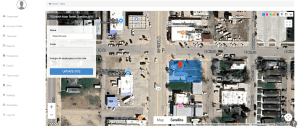
How to Create a Geofence Area
- Navigate to Sites on the dashboard
- Select an existing site or create a new one
- In the Geofence section:
- Use the polygon drawing tool in the top right corner to outline the allowed area
- Avoid overlapping parking lots, streets, or neighboring properties
- Keep a buffer zone around the boundary to account for GPS inaccuracy
- Enable the “Geo Fence Required” toggle
- Click Save
Pro Tip: Add a small buffer around the building to prevent accidental violations due to slight GPS drift.
Use Cases for Geofencing
- Ensure On-Site Presence: Employees can only punch in when physically at the job site.
- Prevent Buddy Punching: Since location is verified, employees cannot clock in on behalf of others.
- Enforce Location-Based Rules: You can apply different rules based on site locations.
- Control Clock In/Out Behavior: Only allow punches from specific locations to maintain payroll accuracy.
What Is a Geo Violation?
A geo violation occurs when an employee attempts to punch outside the defined geofenced area. When this happens:
- The system blocks the punch (if configured strictly)
- Or logs it as a Geo Violation if lenient rules apply
- An alert can be triggered for admin or manager review
How to Track & Report Geofence Activity
NextGen Workforce offers multiple reports and logs to monitor geofencing accuracy:
1. Geo Punch Report
- Shows whether the punch occurred inside or outside the geofence
- Includes GPS coordinates and map view
2. Geo Violation Logs
- View all punches that triggered geo violations
- Helps identify employees who repeatedly violate geofencing
3. Geo Compliance Report
- Tracks which employees are following the geofencing rules
- Can be filtered by site, date, or department
4. Raw Logs
- Shows complete raw punch data, including device type, coordinates, and timestamps for audits
Geofencing on the Mobile App
For geofencing to work on mobile:
- The NextGen Timeclock & Scheduling app must be installed
- You must set Location Services to “Always Allow.”
- Mobile internet or GPS must be active during punching
- A visible prompt will show if the employee is inside or outside the allowed area
What Happens If I’m Outside the Fence?
If the employee is outside the geofenced area:
- The system will block the punch (if you enable strict mode).
- A warning will appear: “You are outside the geofence area. Punch not allowed.”
- If the system allows soft enforcement, the punch will go through, but the system will flag it as a geo violation.
Conclusion
Geofencing adds a strong layer of location-based security and accuracy to your time-tracking process. With proper setup and employee awareness, it reduces manual errors, prevents misuse, and ensures compliance across sites.
NextGen Workforce seamlessly integrates the geofencing feature into both the web and mobile apps, offering full visibility and control over your distributed workforce.