How can we help?
Subscribing to Your Schedule Feed in Google Calendar
Stay updated with your shifts directly from Google Calendar
This guide walks you through adding your personalized schedule feed (in .ics format) to Google Calendar. Once added, your calendar will stay in sync with your schedule automatically.
How to Add the Schedule Feed
You must do this from a desktop browser. The Google Calendar mobile app does not support URL-based calendar subscriptions directly.
Step-by-Step:
- Copy your .ics link (usually a public link provided via S3 or NGW dashboard)

- Open Google Calendar in a web browser
- On the left-hand panel, locate “Other calendars.”
- Click the “+” icon next to “Other calendars.”
- Choose “From URL” from the dropdown
- Paste your .ics URL into the field
- Click “Add calendar.”
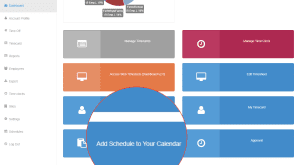
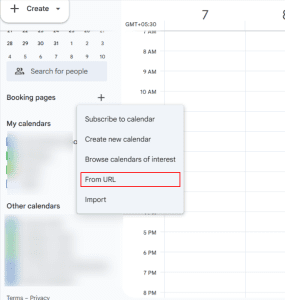

Your schedule will now appear under Other Calendars and update automatically.
Sync & Update Behavior
Google Calendar automatically fetches updates from your schedule link. Here’s what you need to know:
How Often It Refreshes
- Update Frequency: Every 4–8 hours
- Note: Edits you make in NGW (like changing a shift) won’t show instantly; they appear after the next sync cycle.
What Happens When Schedule Changes
- New Shifts: Appear in your calendar automatically
- Edited Shifts: Replaced with updated details (time/location)
- Deleted Shifts: Removed from your calendar automatically
Troubleshooting & Common Issues
| Issue | Cause | What You Can Do |
|---|---|---|
| Shift change is not visible | Waiting on sync | Wait a few hours or check the internet connection |
| The calendar shows on the desktop, not the mobile | Sync issue between desktop and app | Ensure your mobile is synced with your Google account |
| Events show “No Title.” | Missing data in .ics feed |
Contact support if it repeats; it may be a feed generation issue |
Important Notes
- For urgent changes (e.g., last-minute shift swaps or emergencies), we’ll communicate via email, not calendar feed.
- This subscription is read-only. You cannot edit or move events from the .ics calendar directly.
Learn how to use the Scheduling tool v2.0/Shift Planner.
Need Help?
For assistance, please reach out to NextGen Workforce Support.